

The Alternative Testing dashboard found in the AIM Instructor Portal offers instructors a single, convenient location to manage details on accommodated exams scheduled with the Testing Center. Instructors can use the Alternative Testing dashboard to:
- View information on the date/time, location and status of a scheduled exam
- Upload exam materials to be used with a scheduled exam
- Download a copy of a completed exam once the student has finished
To access the Alternative Testing dashboard, you can click the Alternative Testing link in the menu on the left-hand side of the AIM Instructor Portal.
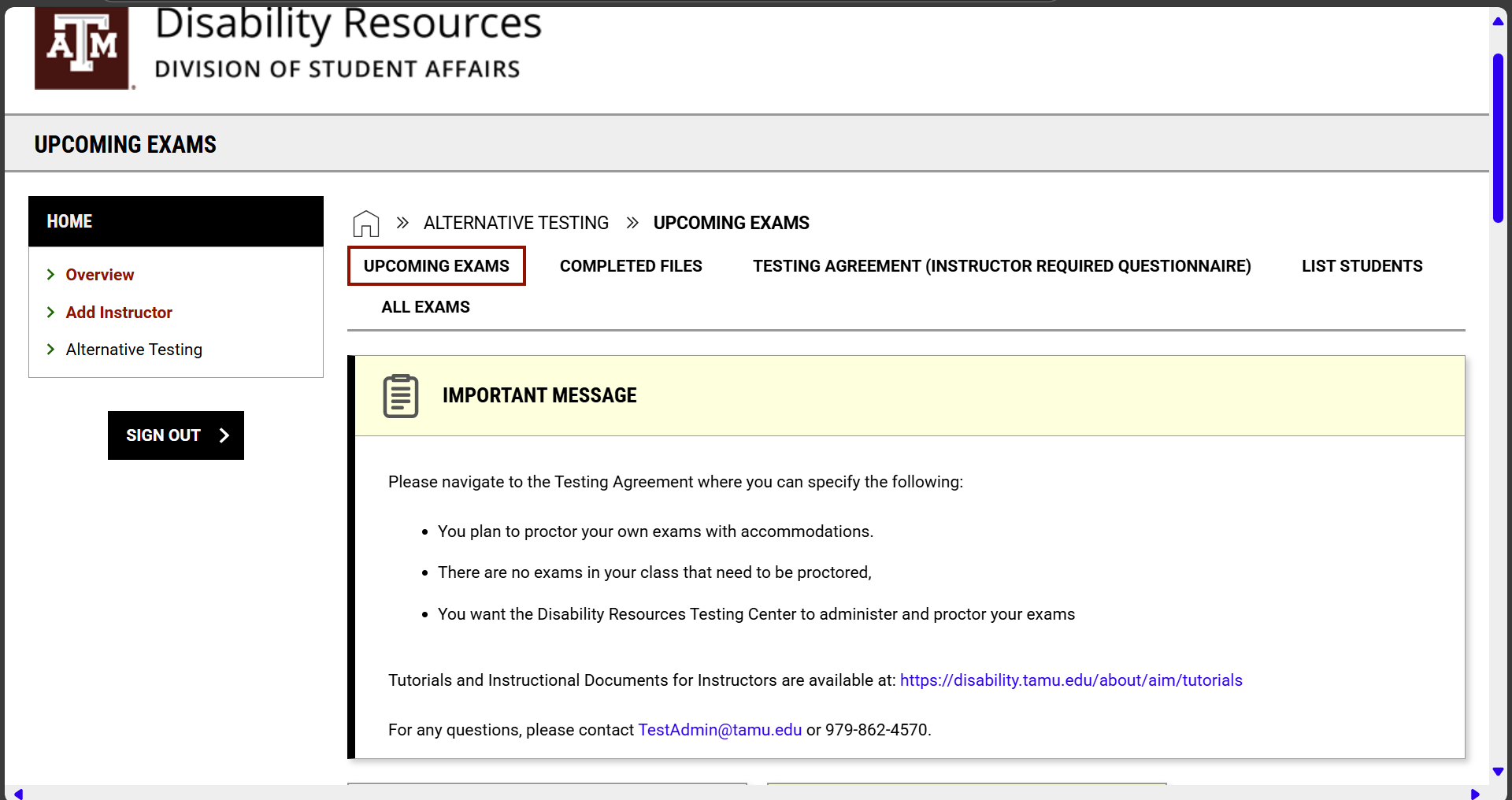
In the Alternative Testing dashboard, there are several options you can access from the horizontal menu at the top of the page:
- Upcoming Exams: This is the default landing page when accessing the Alternative Testing dashboard. This page lists exams scheduled with the Testing Center to be administered soon.
- Completed Files: This page lists completed exam files for instructors who indicate they want their exams returned by scan/upload via AIM.
- Testing Agreement (Required Instructor Questionnaire): This page allows you to indicate your Exam Management Method, complete a testing agreement for course(s) and modify existing testing agreements if your needs or preferences change.
- List Students: This page lists all students with accommodations related to testing (exams, quizzes and other timed assessments) and the specific accommodations they are eligible to receive.
- All Exams: This page lists all exams scheduled with the Testing Center for your students with exam accommodations throughout the current semester.
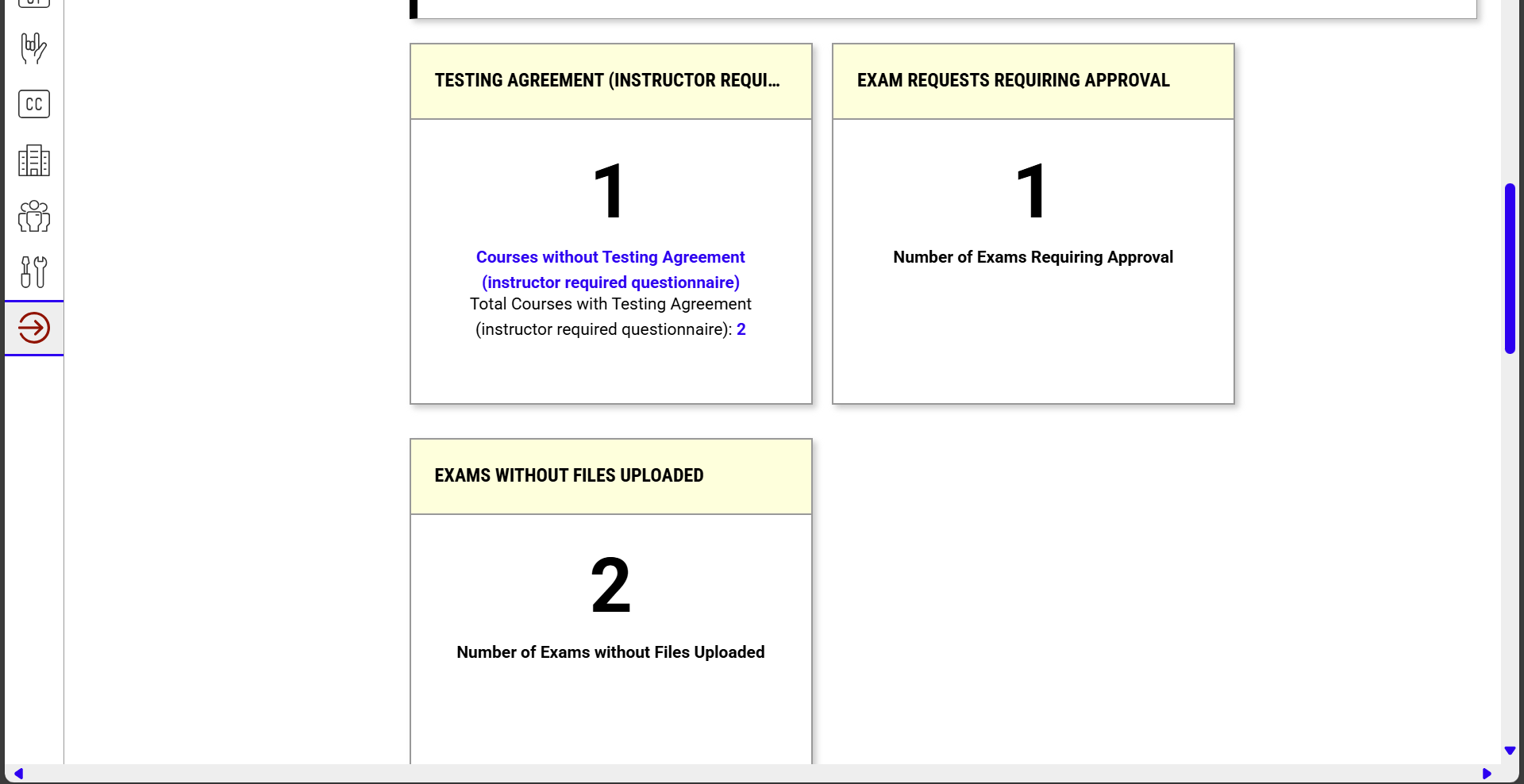
AIM displays tiles with at-a-glance details on information including:
- Testing Agreement (Required Instructor Questionnaire): The number of testing agreements that have been completed or are awaiting your response.
- Exam Requests Requiring Approval: The number of exams awaiting approval by the Testing Center.
- Exams without Files Uploaded: The number of exams currently scheduled without materials uploaded. (NOTE: This tile is important if you have indicated you will upload exam materials on your testing agreement).
The testing agreement is a short questionnaire which provides the Testing Center with details on the dates/times of your exams, what materials are provided, what students can and cannot use during the exam, and other information which helps us to administer your exams the way you do for other students. Without a testing agreement, we are unable to administer exams for your course. Instructors receive automated reminders and communication from the Testing Center until they complete the testing agreement or indicate they intend to proctor their own accommodated exams.
You can access the testing agreement for your course(s) by visiting your AIM Instructor Portal and clicking the Alternative Testing link in the menu on the left-hand side. Specific guidance and step-by-step instructions for managing your testing agreement can be found in this detailed overview on testing agreements in AIM.
On the Alternative Testing dashboard, you can review upcoming exams in a couple of ways:
- Click Alternative Testing in the menu on the left-hand side of your AIM Instructor Portal and scroll to the Upcoming Exams Scheduled section.
- Click All Exams from the Alternative Testing dashboard.
The first option will show only upcoming exams, while the second option will show you all exams scheduled for the current semester (including those that have already been taken).
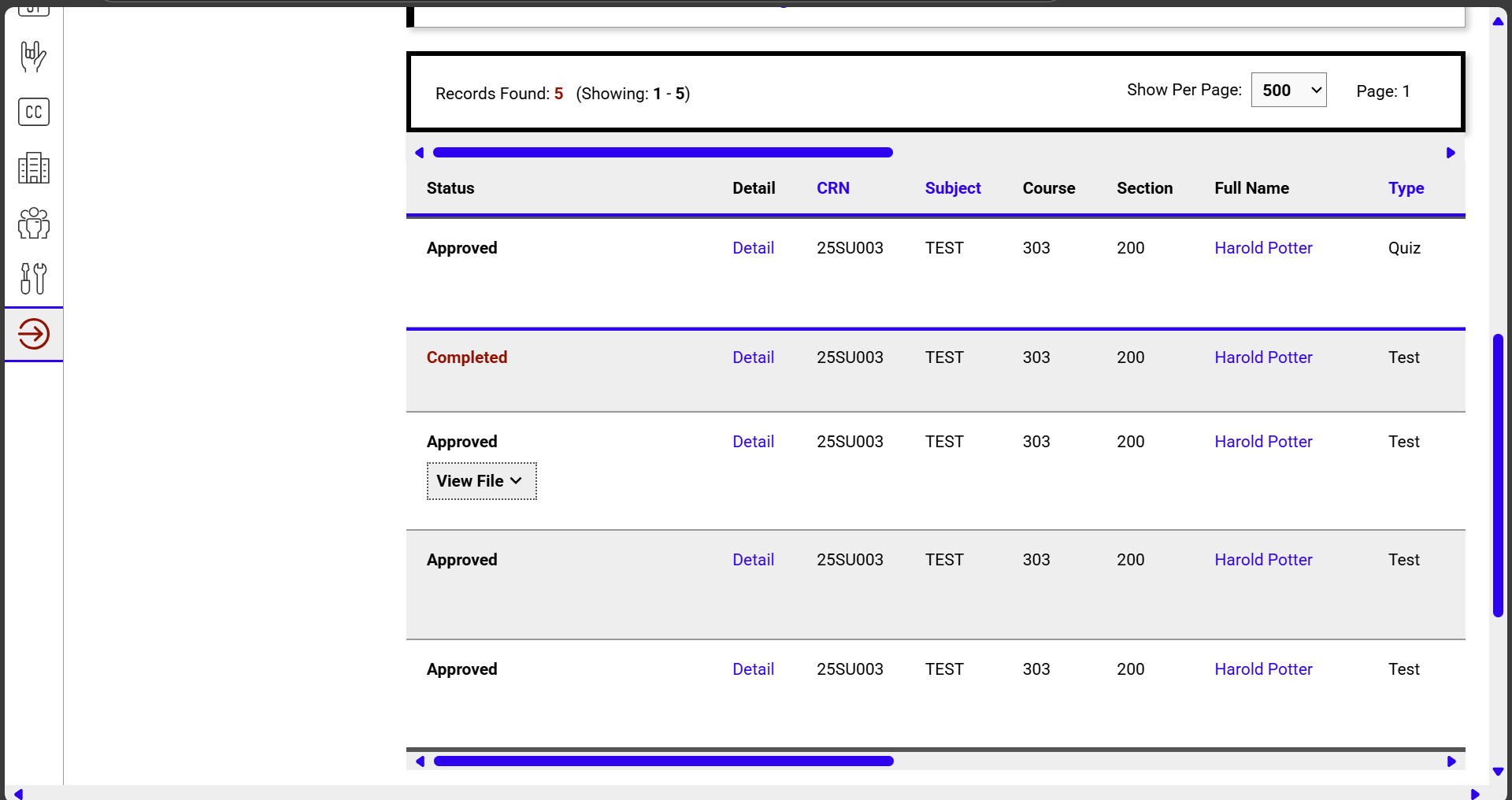
You can view details including the status of an exam (Processing, Approved, Declined, Completed, etc), the date/time the exam is scheduled, requested accommodations and technology (like personal use of computer, Open Access Lab, etc) and details on when the exam was initially scheduled with the Testing Center.
On the Alternative Testing dashboard, you can see the number of exams without files uploaded for a scheduled exam on the Upcoming Exams page under the Exams without Files Uploaded section.
From the Upcoming Exams page, scroll to the Upcoming Exams Scheduled section and review the table of future exams scheduled with the Testing Center.
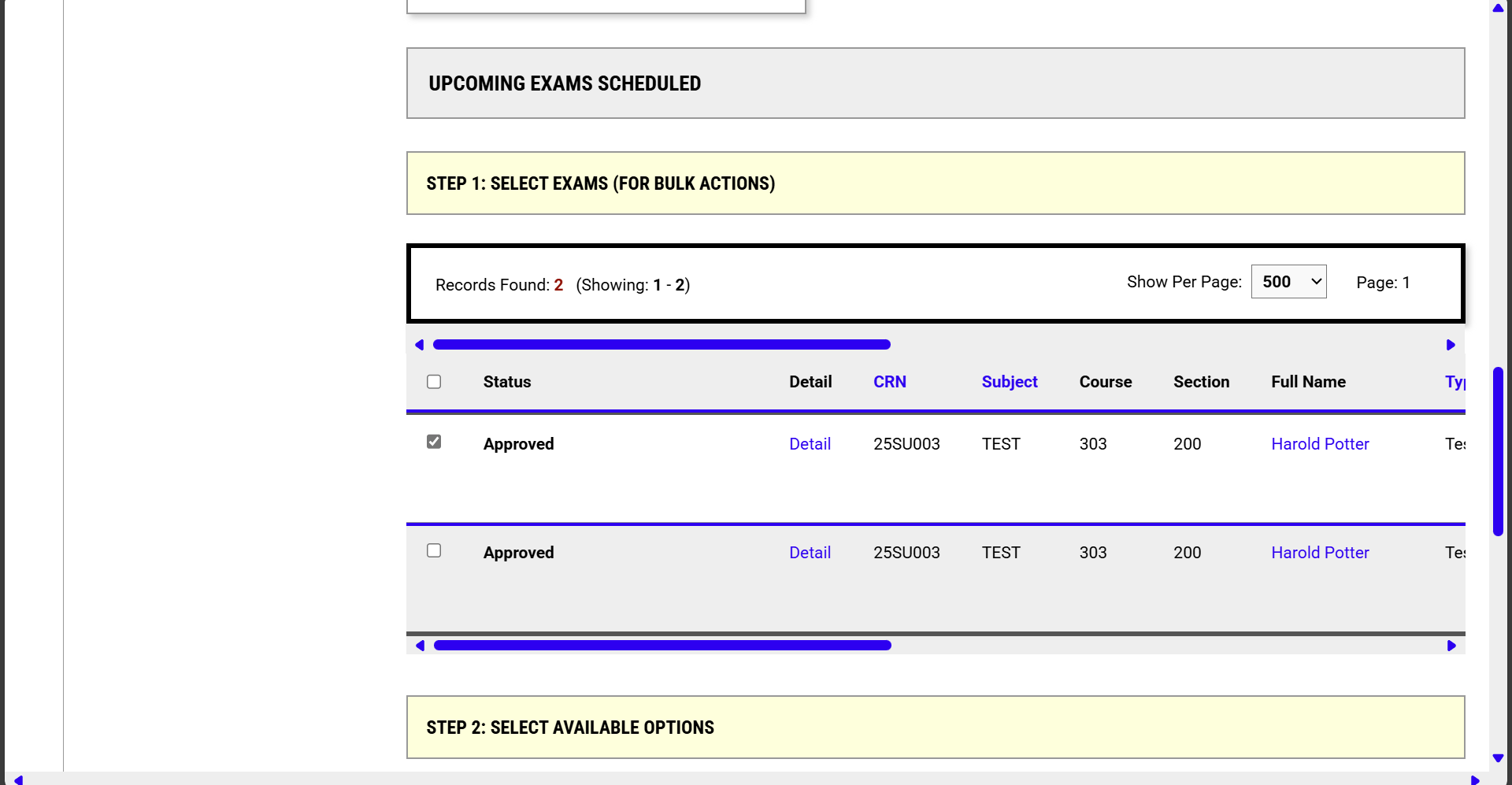
You can view files already uploaded for an exam by clicking the View File disclosure in the left-hand column of the request.
If you have indicated in your testing agreement you will upload exam materials to AIM, you can check the box beside an exam and scroll to the Step 2: Select Available Options section to select a file to upload to the selected exam.

You can upload the same file to multiple exams in bulk by simply checking the checkbox for all applicable exams listed in the table.
When you specify to have completed exams scanned/uploaded as the return method on your testing agreement, the Testing Center will upload completed exam files to your AIM Instructor Portal.
To retrieve a completed exam, do the following:
- Log into your AIM Instructor Portal.
- Click Alternative Testing in the menu on the left-hand side.
- Click Completed Exams in the horizontal menu at the top of the page.

- Scroll to the table of completed exams and choose the Download option in the left column beside each file you want to retrieve.