
Managing a Testing Agreement in AIM
When an instructor chooses to work with the Disability Resources Testing Center to administer accommodated exams for students, a Testing Agreement (Required Instructor Questionnaire) (also known as just a testing agreement) is needed to ensure we administer your exams to the same standards and expectations used for students testing in the classroom.
The testing agreement is a short questionnaire which provides the Testing Center with details on the dates/times of your exams, what materials are provided, what students can and cannot use during the exam, and other information which helps us to administer your exams the way you do for other students. Without a testing agreement, we are unable to administer exams for your course. Instructors receive automated reminders and communication from the Testing Center until they complete the testing agreement or indicate they intend to proctor their own accommodated exams.
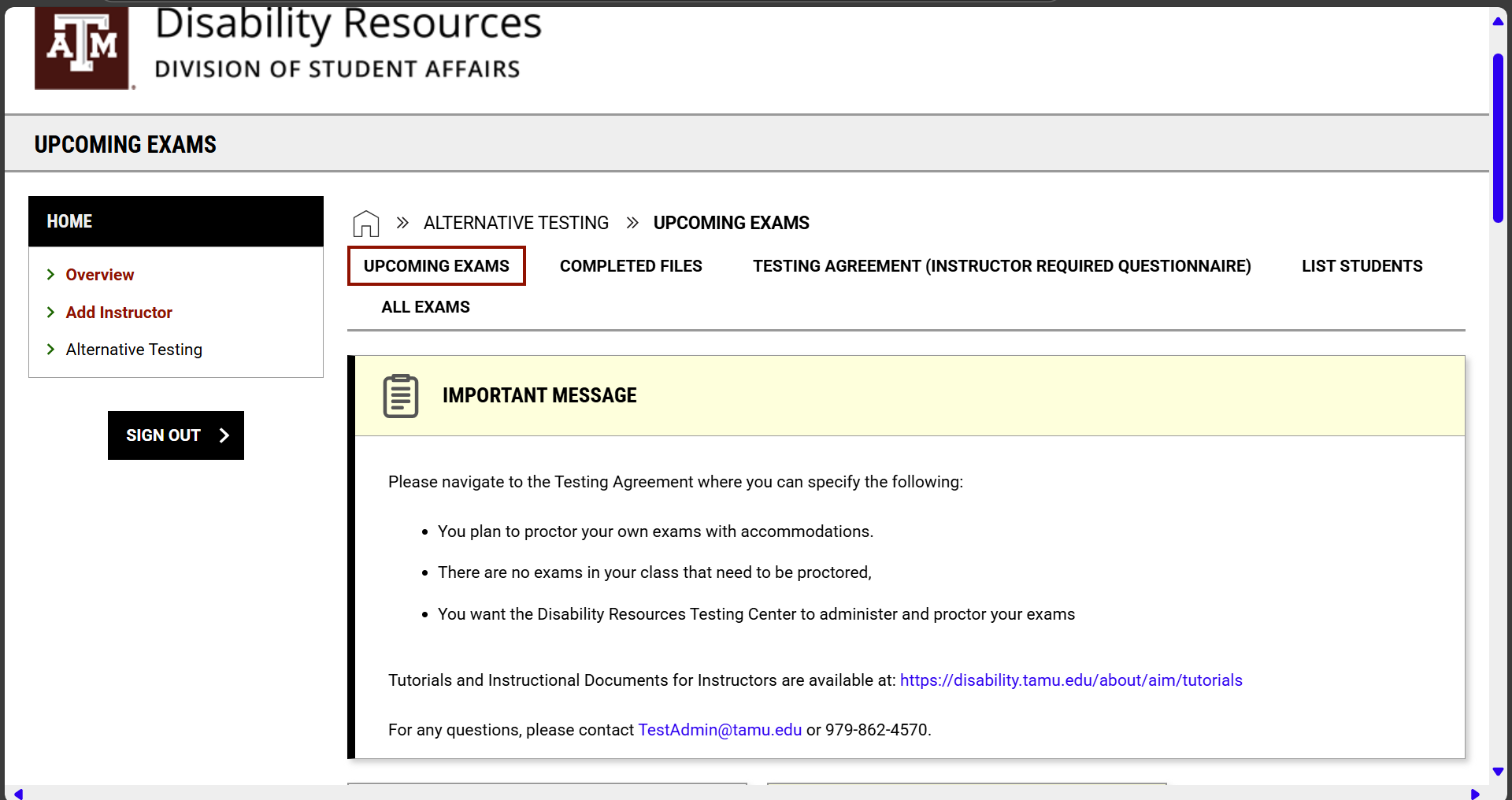
You can begin the process of setting an Exam Management Method and completing the testing agreement by logging into your AIM Instructor Portal and navigating to the Alternative Testing dashboard in the menu on the left-hand side.
Accessing a Testing Agreement
When a student in your course requests accommodations, you will receive a Faculty Notification Letter (FNL) with information on the accommodations they are eligible to receive.
When a student has accommodations related to timed assessments (like exams or quizzes), you will see these listed in the Alternative Testing section of the FNL.
To begin the process of completing the testing agreement for your course(s), do the following:
- Access your AIM Instructor Portal.
- Click the Alternative Testing link in the menu on the left-hand side.
- Click the Testing Agreement (Required Instructor Questionnaire) link in the horizontal menu at the top of the Alternative Testing dashboard.
- Click the Specify the Testing Agreement (Required Instructor Questionnaire) for each course where an agreement is Not Specified.
Setting an Exam Management Method
When a student requests exam-related accommodations, the course instructor will be asked to let Disability Resources know how they intend to provide these accommodations on their exams. Options include:
- Disability Resources’ Testing Center will need to proctor accommodated exams
- The instructor will proctor their own accommodated exams
- There are no exams in this course
- There is no proctor needed for exams in this course
When you receive a Faculty Notification email (FNL) regarding accommodations for a student, you will be prompted to complete a Testing Agreement (Required Instructor Questionnaire) in the AIM Instructor Portal. You can access the testing agreement by logging into the portal and choosing the Alternative Testing dashboard on the menu on the left-hand side.

Once in the Alternative Testing dashboard, you can see at-a-glance the number of exams scheduled without a testing agreement and click the link to View Exams without a Testing Agreement (Required Instructor Questionnaire). You can also click the Testing Agreement (Required Instructor Questionnaire) link in the horizontal menu at the top of the page.
When you choose to Specify a Testing Agreement (Required Instructor Questionnaire) for one of your courses, you will be asked to select an Exam Management Method from the options above. Once you select to have the Disability Resources Testing Center proctor your exams and confirm this choice, you can click Continue and proceed to complete the testing agreement for your course.

If you select any other option for Exam Management Method, the testing agreement will be closed and students will not be able to schedule accommodated exams for this course.
Completing a Testing Agreement
You can complete a testing agreement by accessing your AIM Instructor Portal. Here you can specify details for a testing agreement or copy details from a previously-submitted testing agreement for another section of the same course (see the Copying a Testing Agreement tab for specific instructions).
As you complete the testing agreement, you will specify details about your exam, the materials students may bring, and how they can schedule your exam with the Testing Center.
You are also now asked to provide dates and times for each of your exams, which will allow AIM to check against your list of approved dates and times when approving or declining exam requests by students. You will add one exam date and time on the first page of the testing agreement and then be prompted to add additional dates and times on the subsequent page.
As you click the Submit or Save Exam Date buttons, the testing agreement will automatically be saved and AIM will display a success message to confirm your submission.


Once you have completed the testing agreement and added all additional exam dates and times, you will receive a confirmation email with a copy of your selections. You can also view or modify the testing agreement by accessing the Alternative Testing dashboard in your AIM Instructor Portal.

Viewing or Modifying a Testing Agreement
You can view or modify a previously-submitted testing agreement by doing the following:
- Access your AIM Instructor Portal.
-
Click the Alternative Testing link in the menu on the left-hand side.

-
Click the Testing Agreement (Required Instructor Questionnaire) link in the horizontal menu at the top of the page.
-
Click the View / Modify Testing Agreement (Required Instructor Questionnaire) link on the course and section to which you would like to review or update your selections.

- If you make changes, click the Update and view Exam Dates button to save your selections.
- If you want to add additional exam dates but do not want to make any changes to your testing agreement, you can click the List Exam Dates link at the top of the page and scroll to the Add Additional Exam Date section.
Copy an Existing Testing Agreement
AIM allows you to copy selections from a testing agreement provided for one section to other sections of your course.
- Access the AIM Instructor Portal.
- Click Alternative Testing in the menu on the left-hand side.
- Click the Testing Agreement (Required Instructor Questionnaire) link in the horizontal menu at the top of the page.
- Scroll to the course and section with a previously-completed testing agreement and click View / Modify Testing Agreement.
- Click Copy Testing Agreement.
- Select the course/section, click Continue, confirm details, and save.