Exporting Lists
Instructors also have the ability to export some lists/reports out of the AIM Instructor portal.
Download a List of Students
- Log in to the AIM Instructor Portal.
- On the Instructor Authentication Page review reminders in the yellow box and then click “Continue to View Student Accommodations”. This will take you to the Overview page.
- On the bottom lower half of the Overview page there will be white box that says “Export Search Result To CSV (Comma-Separated Values) File.
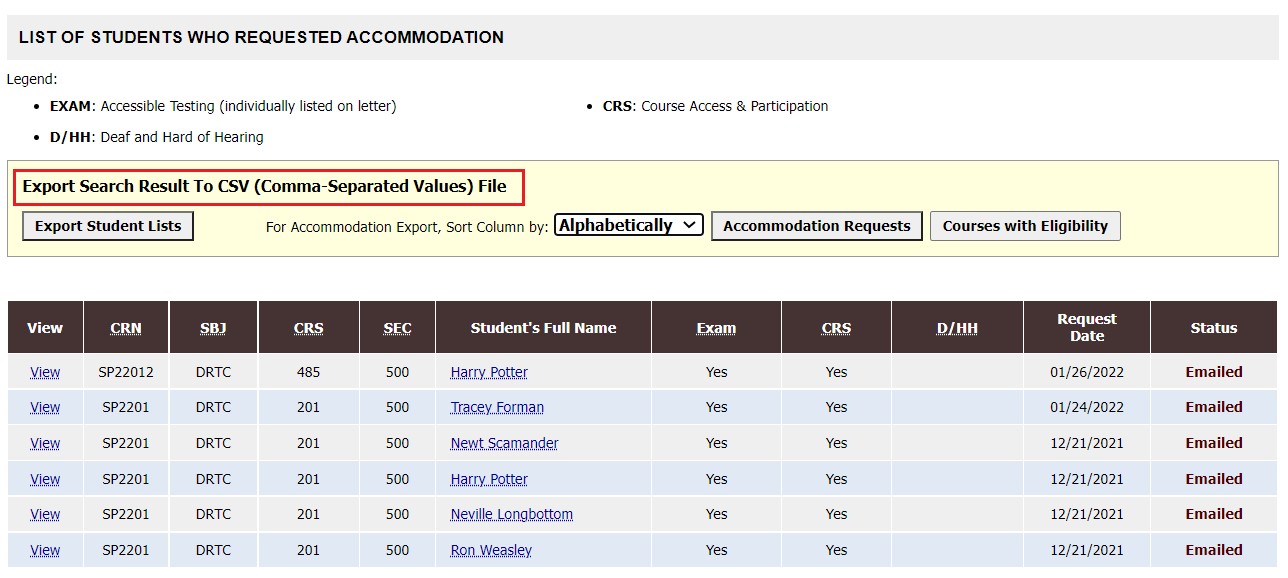
- Export Options:
- Export Student Lists: Student Last Name, Student First Name, Email, UIN, Primary Advisor and columns for each specific accommodation
- Does not include course information
- Accommodation Requests: Student Last Name, Student First Name, Email, UIN, Primary Advisor, CRN, Subject, course, section, date of initial request, date of last update and columns for accommodation groups
- Does note include specific accommodations (i.e. extended time value)
- Courses with Eligibility: Student Last Name, Student First Name, Email, UIN, Primary Advisor, CRN, Subject, course, section, date of initial request, date of last update and columns for each specific accommodation
- Export Student Lists: Student Last Name, Student First Name, Email, UIN, Primary Advisor and columns for each specific accommodation
- Your file will be automatically downloaded.
View and Download a List of Exams
- Logon to the AIM Instructor Portal and navigate to Accessible Testing, this will automatically bring you to “List Exams”
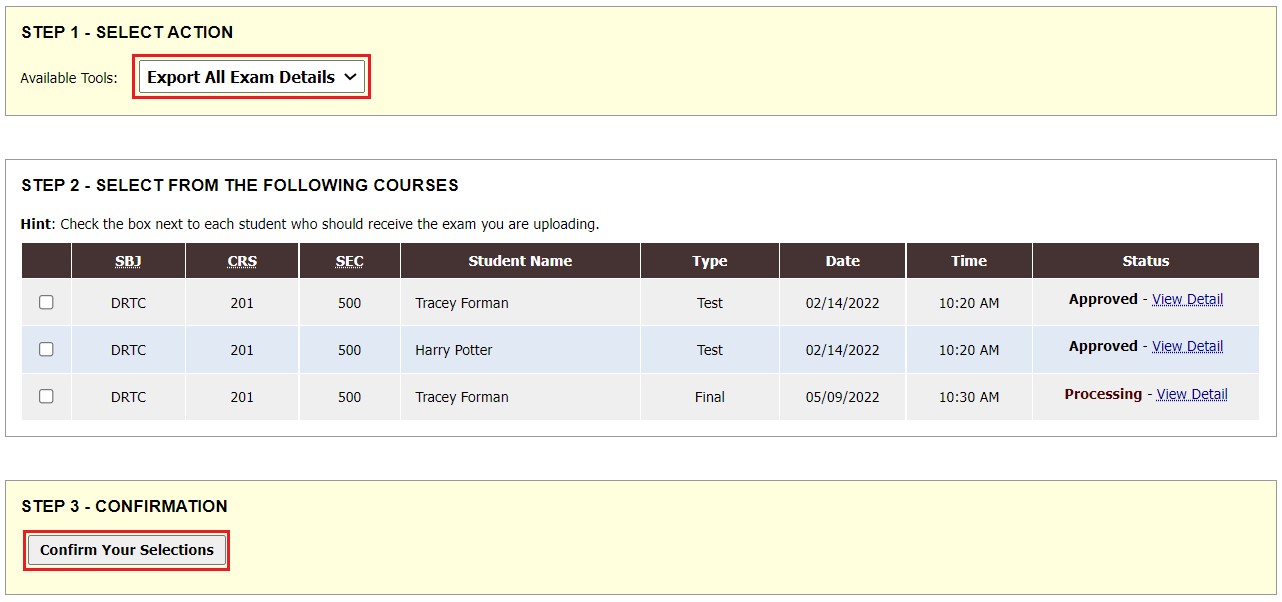
- Scroll down to Step 1 – Select Action and change Available Tools to ” Export All Exam Details”
- NOTE: For this action (export all exam details), you do not need to complete Step 2
- Under Step 3 – Confirmation click “Confirm your Selection”
- AIM will export a summary list of all exams on your list including the following fields: Student Name, UIN, Email, Subject, Course, Section, Date, Time Start, Time End, Approved Accommodations