
Requesting and Accessing Alternative Format Materials in AIM
Disability Resources provides alternative format materials for eligible students using assistive technology to read their textbooks and other course materials. These alternative formats may include PDF, EPUB, Word or braille materials.
To make a request, check the status of requested materials, or complete other tasks for alternative format materials, select the Alternative Formats link in the My Accommodations box on the left-hand side of the AIM portal.
NOTE: Students must have already requested their accommodations for the semester for which they are requesting books in order for alternative format options to be available.
Adding a New Request from the Bookstore List
-
After logging into the AIM portal, students may select the Alternative Formats link under the My Accommodations tab, on the bottom left side of the screen.

-
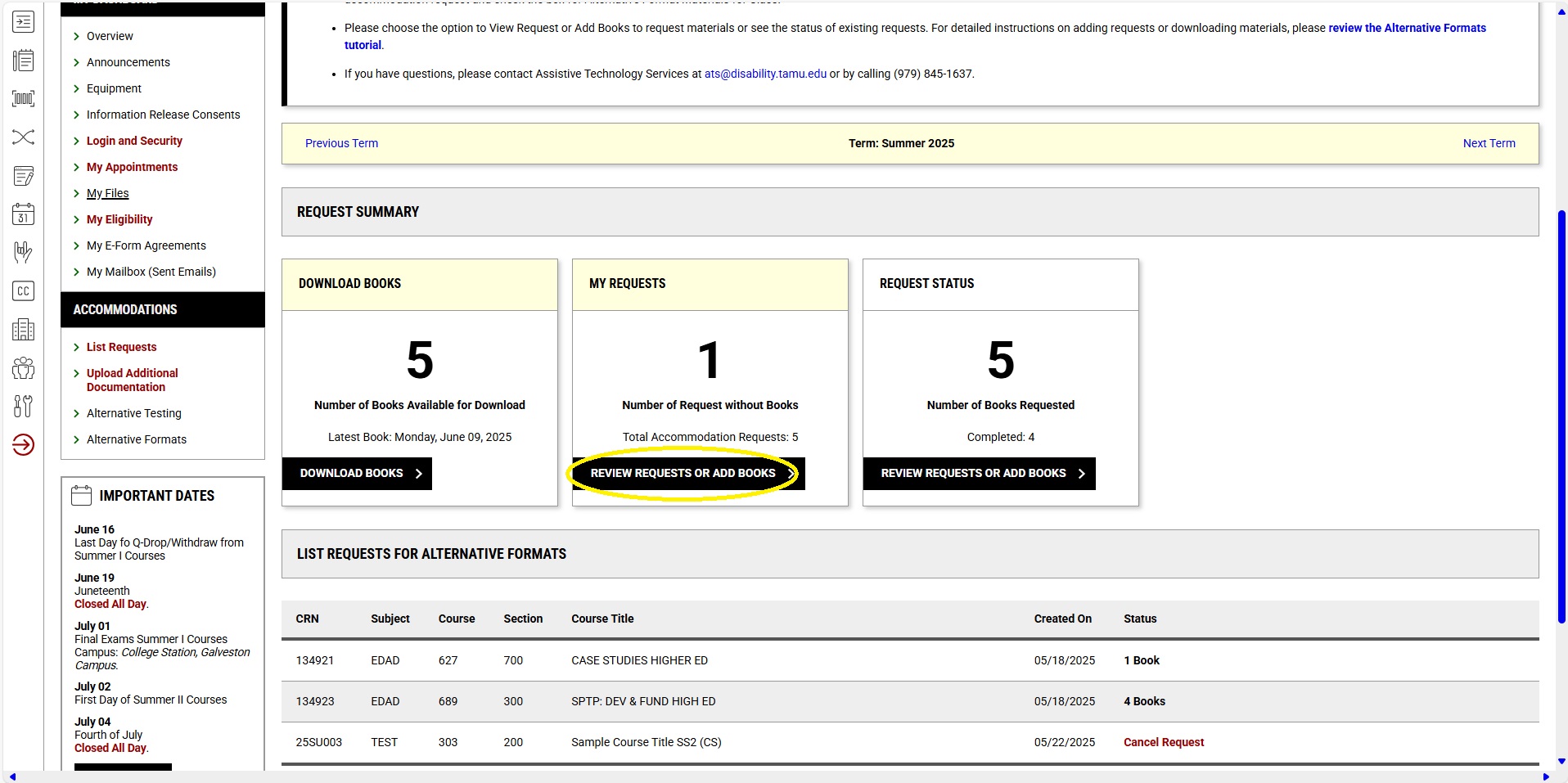
Under the Request Summary bar, navigate to the My Requests tab and click the Review Requests or Add Books button.
-
From the Alternative Formats page, students can review a list of materials listed with the bookstore for their courses.
-
To make a request for any of the materials listed, choose the Select option beside any item.

-
Once requested, the status of each request is viewable by the student under the List of Book Requests tab.

Please note: The bookstore may list several versions of the same item (print versus ebook). Review each item carefully before requesting it, to avoid duplicate requests.
Adding a New Request for Materials not Listed with the Bookstore
-
On the same Alternative Formats – Requests page, scroll down to the Reading Material tab and fill out the information accordingly.
-
Complete this section with as much detail as possible for each item being requested.
-
Click the Submit Request button under the Form Submission tab when the form is completed.
-
Once requested, the status of each request is viewable by the student under the Lists of Book Requests tab in the Availability column.

-
Once requested, the status of each request is viewable by the student under the Lists of Book Requests tab in the Availability column.

Downloading Requested Materials as They are Completed
-
From the Alternative Formats page under the Lists of Book Requests tab, review the list of materials requested.
-
When the status of a request is partially completed or finished entirely, select the blue Download button to view available files.
-
Files can be opened or downloaded on the resulting page.

Please Note: Disability Resources requires students to read and acknowledge an Alternative Format Services Agreement when approved for this accommodation. The agreement explicitly states students are not to share materials with anyone and are to delete alternative format versions of materials once they have completed the course and/or no longer have possession of their original copy.